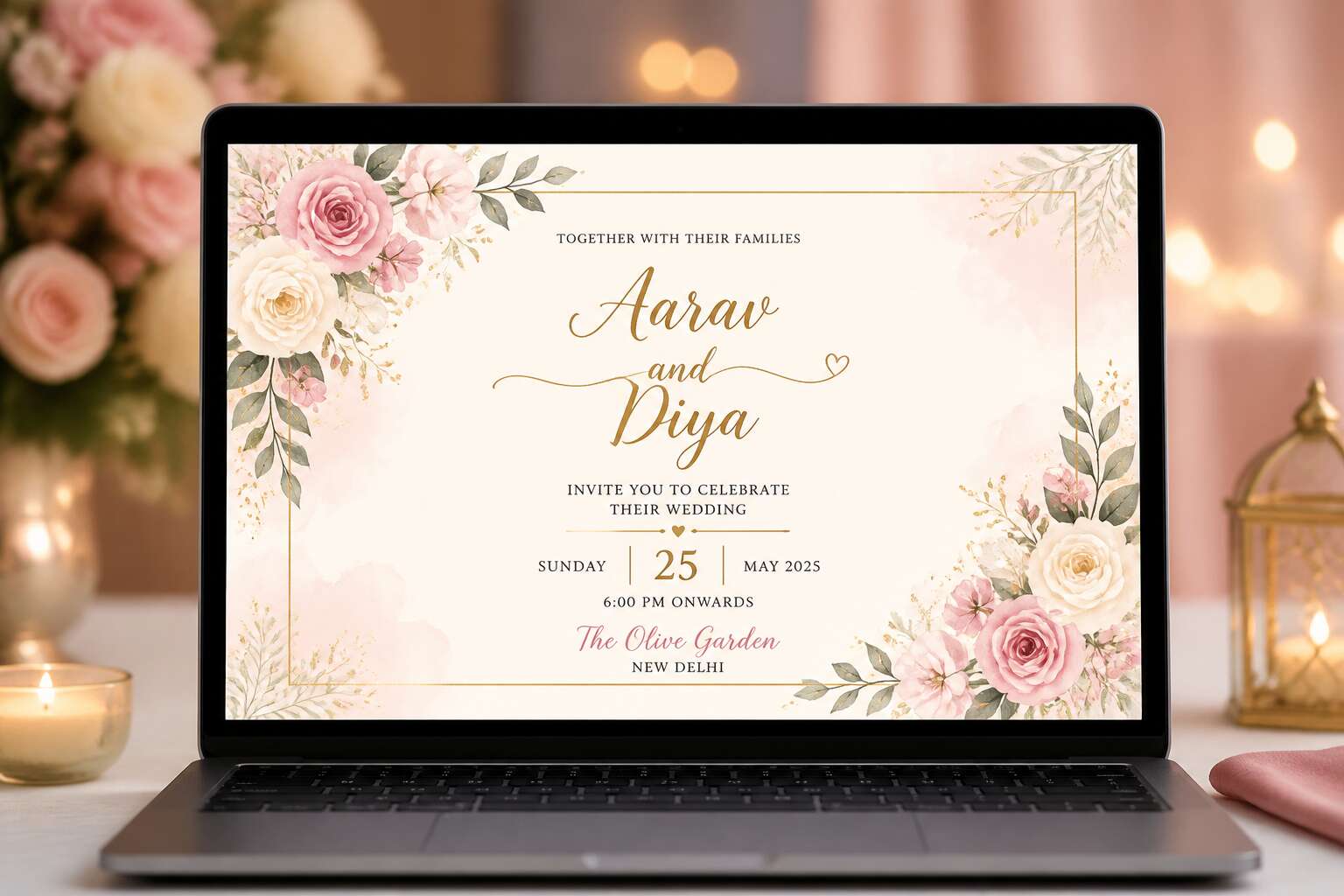
Understanding Digital Wedding Invitation Formats
Why Couples Choose JPEG for Invitations
In my work with South African couples, four out of five digital invitations arrive as a wedding invitation jpg image. This statistic from 2025 wedding tech reports reflects a trend toward simplicity and reliability.
JPEG compression strips unnecessary data while preserving what the eye perceives. That makes it ideal for sharing on WhatsApp, where file size dictates delivery speed. A PNG captures every pixel but turns a simple RSVP card into a 15 MB file. PDFs require a separate viewer and often trigger security prompts. The JPEG sidesteps both problems!
For couples working with limited mobile data, this format makes practical sense. It carries the design, the date, and the invitation itself without excess digital load.
JPEG vs PNG vs PDF: Pros and Cons
Understanding the difference between a JPEG, PNG, and PDF comes down to where your invitation will live. A wedding invitation jpg image handles photography and gradients well, while PNG proves better for sharp text and backgrounds that need transparency. PDF locks in the layout for printing or formal RSVP documents.
Here is what I weigh when helping couples decide:
- JPEG: good for speed, but solid color blocks may show slight artifacts.
- PNG: crisp lines with larger file size.
- PDF: exact reproduction, though recipients often need extra software.
The right choice depends on your audience’s devices. Many wedding invitation jpg image files appear on phones, where they load faster and look consistent. But if your suite includes fine print, I suggest generating a test in each format and viewing it on a friend’s phone before sending.
When a JPG Invitation Works Best
Your wedding invitation jpg image will probably be opened on a phone screen before it is ever printed. In South Africa, WhatsApp carries most wedding communication, and the format you choose determines whether the invite loads quickly or stalls on a slow connection.
The JPG format excels in this environment. It compresses photographic details, such as an engagement shoot or a watercolor backdrop, into a file that respects mobile data limits. I have watched couples agonize over print sharpness, only to realize their guests never zoom in. Solid color blocks are the only weakness, and a layout that favors imagery over flat fills works around that.
- Photography-heavy invitations preserve skin tones and gradients in JPG.
- Mobile-first sharing benefits from smaller file sizes that deliver faster.
Understanding digital wedding invitation formats means knowing your guests’ viewing habits first. A wedding invitation jpg image fits the way people actually share and open files today.
Key Technical Requirements for Crisp Images
A wedding invitation jpg image depends on three technical choices. Resolution determines sharpness on any screen. For mobile viewing, export the longest side at 1080 pixels. This aligns with standard phone displays. For future printing, embed a 300 DPI value in the metadata. That setting does not inflate file size unless the pixel dimensions change. Compression is the second choice. Use a level that avoids visible artifacts, especially in skin tones and gradients. The third choice is color profile. sRGB remains the safest standard because most South African phones render it correctly. Consider these requirements:
- 1080 px longest side for immediate clarity.
- 300 DPI metadata for print flexibility.
- sRGB color profile for consistent display.
Test the final export on an older phone to see the actual result. That test reveals more than any spec sheet.
How to Create a Wedding Invitation JPG Image
Selecting the Right Design Software
Choosing the right software for your wedding invitation jpg image determines how much control you have over the final result. Canva remains a favourite for its drag and drop simplicity, while Adobe Express offers a free tier with robust export options. For those who prefer open source, GIMP provides granular control over pixels.
Consider these factors when deciding:
– Does the software support CMYK preview? This matters if you plan to print later.
– Can it export at 300 DPI? A low resolution export will undermine your wedding invitation jpg image.
– Does it offer templates sized to South African A5 or DL formats?
Software selection shapes your workflow. A simple tool will save hours for a novice, while a complex one gives finer control to an experienced designer. Choose based on your comfort with editing layers and typography. The right choice is the one that lets you focus on the design itself.
Setting Canvas Size and Aspect Ratio
Midway through a design project, the most common mistake is guessing the canvas size. A wedding invitation jpg image relies on precise dimensions from the first click. For South African formats, A5 (148 by 210 millimetres) suits classic folded cards, while DL (99 by 210 millimetres) fits sleek RSVP inserts. Open your software and set the width and height in millimetres, not pixels alone.
Aspect ratio defines how the design holds its shape during export. If you edit for a square but print in A5, your wedding invitation jpg image will crop unexpectedly. Use the ratio of 1:1.414 for A5 and 1:2.121 for DL. Keep these in mind:
- Set 300 DPI for print, 72 DPI for digital previews.
- Add 3 millimetres bleed around all edges.
- Lock the aspect ratio before resizing any elements.
One couple I worked with skipped the bleed and lost the border after trimming. The canvas is your contract with the printer. Set it correctly, and every other adjustment follows naturally!
Layering Text, Icons, and Backgrounds
A single layered file rarely survives contact with a South African print shop untouched. I always start with the background, then icons, then text. This order prevents constant reshuffling later. For one Cape Town couple, the icons, delicate fynbos line art, sat behind the names instead of above them. That small change gave the piece a sense of depth.
Use groups to keep related layers together. A wedding invitation jpg image can contain thirty layers, and without names, you will lose track. Most software allows you to label and collapse groups, which saves real time when the printer requests a revised file.
Consider building in this order:
- Background colour or texture
- Decorative icons and borders
- Main headline text
- Details and RSVP lines
Keep text layers separate until the very end. Flattening too early makes every small edit a recreation. When you finally export the wedding invitation jpg image, the layers merge cleanly, but the structure stays intact for future edits.
Exporting with Optimal Compression and Quality
When a wedding invitation jpg image leaves your design software, it presents a trade-off between sharpness and weight. A 10 megabyte file clogs email servers and stalls guests with slow connections. Compression is a trade, not a loss. The skill is knowing which pixels you can discard without the eye noticing.
Most export dialogs force a series of quiet decisions:
- colour profile: sRGB or CMYK
- resolution: 300 DPI for print, 72 DPI for screens
- quality percentage: the balance between fidelity and file size
Each choice reshapes the final wedding invitation jpg image. In South Africa, where couples often send invitations over WhatsApp, a 2 megabyte file travels faster than a 5 megabyte one, and both look identical on a phone screen. I have watched couples re-export the same design four times before accepting that 85 percent quality holds every detail. That difference matters when your guest list sits on the other side of a patchy mobile connection!
Pitfalls That Ruin Your Digital Save
Some mistakes only reveal themselves after the message has been sent. The most common involves exporting a wedding invitation jpg image with hidden layers still active. A watermark or a guide line you thought was invisible suddenly appears on every phone in the family group chat.
Other pitfalls follow a pattern:
- Saving with a colour profile your recipient’s phone doesn’t recognise
- Downscaling for email, then re-uploading and letting the platform compress it again
- Forgetting to zoom to 100 percent before the final save
Each one shows up differently on different devices, which is why the same file can look polished on one screen and broken on the next. I have seen couples assume the file was fine because it looked perfect on their own phone.
Sending and Sharing Your Digital Invitation
Email Etiquette for JPG Invites
The average guest spends three seconds deciding whether to open a wedding invitation jpg image. That is your entire window. I have watched a beautiful design get ignored because the subject line read ‘Invite’. Data costs in South Africa make file size a critical factor. Keep your exported JPEG under 1MB and state the size in the body.
Your subject line needs clarity: ‘Sarah & Thabo: RSVP by 15 March’. Inside, the text should mirror the image. Guests often view emails on older phones. Build the email like a careful host:
- Start with a personal greeting.
- Include the date and venue as plain text.
- Attach the image, never embed it.
Embedding forces a download on slower networks. Attaching allows saving to the gallery. This is respectful etiquette. A guest who saves your wedding invitation jpg image has already made a mental note for the big day.
Delivering via Social Media and Messaging Apps
Sharing a wedding invitation jpg image through WhatsApp or Instagram Stories has become the norm for many South African couples. The immediacy feels personal, yet the etiquette differs from email. On social media, your image competes with memes and news alerts. A direct message to each guest beats a broadcast. Group chats can be chaotic; consider creating a dedicated list for bridal party and family.
When you post your wedding invitation jpg image publicly, add a caption with the date and venue. Guests may screenshot, so keep the file name clear. Use high contrast for thumbnails. For messaging apps, follow a simple sequence:
- Resize images before sending to avoid data strain.
- Check the preview quality on a phone screen.
- Follow up with a text confirmation to ensure delivery.
That follow-up matters. A silent send can get lost. Your wedding invitation jpg image should feel like a moment, not a notification.
Hosting the Invitation on a Wedding Website
The wedding website is the silent keeper of your day. While a wedding invitation jpg image travels through WhatsApp threads and Instagram ephemera, the site remains still, giving guests a place to return when the noise fades. Host the image at the top of your homepage, where no scroll is needed. Name the file clearly, such as ThandiAndLwazi-2026.jpg. This small detail prevents confusion on a phone screen.
Beneath the image, place the essential details that do not fit on the card:
- Travel and accommodation notes
- Dress code and weather expectations
- A direct link to your RSVP portal
The wedding invitation jpg image is a visual starting point, not a full document. Your website holds the logistics. Keep the page light. A heavy file will stall on mobile data, and a slow load under South African bandwidth constraints is a poor first impression.
Simplifying RSVP Collection from a JPG
Your aunt will phone your mother. Your colleague will reply with a voice note. Your cousin will answer on the WhatsApp group you forgot existed. A wedding invitation jpg image cannot control these people, but it can simplify the chaos when it carries one clear instruction!
Couples who print the RSVP deadline directly on the image and add a single link or QR code tend to get cleaner responses. That link gets repeated in the WhatsApp caption and the Instagram bio, so the guest never opens a search engine.
The smoothest setups share a pattern:
– The RSVP link sits in the caption, not buried in the image
– The deadline matches the caterer’s cutoff
– The form asks for meal choice and dietary needs
When a wedding invitation jpg image lands on a phone, the guest knows what to do within three seconds. That speed reduces the forty separate replies to one neat spreadsheet.
Designing a Personalized Invitation Image
Matching Fonts and Colors to Your Wedding Theme
Your wedding theme is a promise of the day to come. When you design your wedding invitation jpg image, every font and colour choice should echo that promise. A beachside ceremony in Cape Town calls for soft blues and airy sans-serifs, while a Winelands vineyard setting pairs well with deep burgundy and elegant serifs.
The texture of your wording matters too. Avoid generic templates. Instead, pull directly from your decor palette or floral selections. This alignment creates a cohesive visual story from the first digital glimpse to the final celebration.
For a cohesive flow, consider these elements:
- The invitation’s background texture
- The weight of the headline font
- The saturation of your accent colour
Each detail reinforces your theme without shouting. This image becomes a quiet prelude, setting expectations for every guest who receives it.
Incorporating Engagement Photos and Illustrations
Your engagement photos carry the genuine energy of your relationship, but a raw photograph can sometimes compete with the typography. The solution lies in thoughtful layering. A duotone treatment or a soft watercolour illustration overlay can transform a standard snapshot into something that feels bespoke. Consider these approaches:
– Place a small circular illustration of your venue or a meaningful landmark in the corner
– Use a hand-drawn border that echoes the lines of your engagement photo
– Fade the photo into the background with a gradient mask
Illustrations work well when they fill gaps that photography leaves empty. A sketch of your flower arrangement or a subtle line drawing of your pet adds personality. The wedding invitation jpg image becomes a composite of memory and imagination. It tells guests that this day will be intimate and intentional. That balance between what is real and what is imagined is what makes a digital invite feel truly yours.
Embedding QR Codes and RSVP Links
A single unresponded invitation can cost you a week of follow-up texts. The wedding invitation jpg image you create can avoid that hassle. Embedding a QR code and a plain RSVP link right into the design makes the reply process visible. QR codes work best in a quiet corner with clear margins. The link sits directly underneath in a readable typeface. Scanning needs verification across several phone models to ensure the code works. A common layout follows this order:
- The quietest part of the background holds the QR code
- The code measures at least 2.5 cm on each side
- The RSVP URL appears in full, not hyperlinked, to prevent font changes
Your wedding invitation jpg image then serves as a practical tool for your guest list. Replies arrive faster because the response process is obvious. You save yourself the drudgery of chasing people.
Adapting Seasonal and Cultural Design Elements
Seasonal design isn’t about slapping a snowflake on a summer wedding. In South Africa, December means scorching sun, not sleigh rides. Your wedding invitation jpg image should reflect the actual weather guests will face. Use bold protea prints for winter or soft citrus tones for autumn. Cultural design elements demand research. A simple motif like a beaded Ndebele apron can carry deep meaning. Avoid generic patterns unless they genuinely belong to your heritage.
- Local flowers in season
- Traditional patterns with permission
- Color palettes tied to cultural ceremonies
This approach produces an invitation that feels like a postcard from your specific place and date. Get that right, and the design speaks before anyone reads a word.
Making Your Invite Stand Out with Texture Effects
The weight of a physical invitation is gone, but texture restores it. A wedding invitation jpg image with a linen weave or a grainy overlay feels dimensional before anyone prints it. In South Africa, designers scan recycled cotton or pressed fynbos for real texture.
Personalization comes from these surfaces. A beaded pattern, a lace backdrop, or the raw edge of a hand-cut card gives the file a story. Texture also changes how light interacts on a screen. Glossy highlights read differently than matte roughness.
Common texture effects include embossed patterns simulated with shadow layers, watercolor splatter over scanned paper, and fabric weaves like silk, burlap, or lace. These elements force the eye to slow down. The invite should feel touched, not just viewed.
Preparing Your JPG Invitation for Professional Printing
Understanding CMYK vs RGB Color Modes
Your wedding invitation jpg image starts in RGB, a spectrum of light that displays millions of colors on a screen. Commercial printers use CMYK, a subtractive model based on cyan, magenta, yellow, and black inks. These systems are not interchangeable. Send a jpg saved in RGB to a press, and the machine converts it automatically. The outcome is often disappointing. Warm skin tones turn sallow. A soft blush background becomes dull pink.
The solution lies in your export settings. Convert the file to CMYK before saving, then review the colors in Photoshop or Affinity Photo. This extra step takes minutes.
Run these checks before sending your wedding invitation jpg image to the printer:
– Confirm the color profile is CMYK, not RGB
– Set black text to rich black, not single black
– Soft proof against the paper stock
– Print a physical proof on cardstock
Remember, ink absorbs into paper. A glowing screen cannot replicate that. Control the translation by checking your settings now.
Ensuring Correct DPI and Sharpness
A 300 DPI setting can be the difference between a crisp invitation and a blurry disappointment. When you prepare your wedding invitation jpg image for professional printing, sharpness demands attention beyond pixel dimensions. I always zoom to 100% in the design software and inspect the edges of text and motifs. Any fuzziness at that level will only worsen on paper.
The correct DPI for a jpg is 300, but also verify the actual pixel count matches your canvas size. Printing enlarges imperfections, so a clean line is non-negotiable. Before sending, run through these checks:
- Ensure the image is not upscaled
- Confirm the resolution field reads 300
- Inspect hairlines and small serifs
A sharp file spares you from reprints and disappointment.
Setting Bleed and Safety Margins
Imagine your invitation arriving with a thin white sliver along the edge. That happens when bleed is missing. Professional printers trim stacks of paper, and without bleed, the blade can cut into your design. A proper bleed extends your background 3mm past the final cut line. The safety margin, meanwhile, protects your text. Keep all wording at least 5mm from the edge.
For a wedding invitation jpg image, these measurements prevent heartbreak. When you export, ensure the bleed area is included in the file. Not every printer asks for the same numbers, so confirm before finalising.
A checklist helps:
– Ensure your canvas includes bleed on all sides
– Keep decorative elements inside the bleed
– Position all text inside the safety margin
Working with a Print Shop for Physical Copies
When your wedding invitation jpg image leaves your screen, it enters a world of ink and steel. A print shop handles physical copies with machinery that respects precision. Introduce yourself to the production manager, and ask about their preferred file specifications. Every printer has quirks, from paper weight to finishing options. Your job is to bridge the digital and tactile realms. I always request a sample proof before the full run. This costs little and saves sleepless nights. Also, confirm how they handle colour profiles, since CMYK calibration differs between machines.
Order your workflow:
1. Request a hard proof on your chosen card stock.
2. Check the texture, ink saturation, and fold alignment.
3. Approve only when every detail matches your vision.
Then order the final quantity. A collaborative relationship with your printer turns a simple JPG into a tangible keepsake. Expect turnaround times to stretch during peak wedding season. That’s why early communication matters for your wedding invitation jpg image!
Testing a Sample Before Mass Production
A pixel-perfect screen does not guarantee a flawless print. Your wedding invitation jpg image enters a different environment at the production press, where dots become visible, paper fibres absorb ink unevenly, and your careful colour choices meet the limits of CMYK. I inspect every file at 400 percent magnification before it leaves my hands.
Testing a sample before mass production is non-negotiable. I request a single hard proof on the exact card stock, never a cheaper substitute. The result surprises many couples. What looked luminous on a monitor can appear flat on uncoated paper, or the reverse. Saturation shifts, fonts gain weight, fine lines vanish.
A digital soft proof gives a hint, but a physical sample gives a verdict. I bend the proof, hold it to the light, and run my thumb across the printed surface. If anything disappoints, I adjust the file and test again. This diligence is the difference between a keepsake and a regret. Your wedding invitation jpg image deserves that difference.
Archiving High-Resolution Master Files
The wedding invitation jpg image you send to the press is a temporary emissary. The master file, however, is your archive, a silent vault where every layer and pixel should rest undisturbed. Treat this original as a relic. Unflattened design files, embedded fonts, and the untouched high-resolution export all belong in a storage system with redundancy. A single external drive is a fragile tomb.
- Keep the native design file with editable text.
- Preserve the final JPG at maximum quality.
- Store a PDF with CMYK profiles for future reprints.
A hard copy will moulder, but the digital master, if properly archived, remains faithful. Couples who lose their source file often discover that memory cannot be re-exported. Protect your wedding invitation jpg image before the flowers wilt, because pixels do not weep, yet they vanish all the same.


0 Comments